


You can easily send fax from Box cloud storage. All you need is WiseFax application for Box. This article will teach you how you can fax from Box with WiseFax.
1. Add the WiseFax application to Box
Open Box’s app store link, then click the Add button and confirm installation.
2. Send fax from Box with WiseFax
Once you have added WiseFax to your Box drive, simply right-click the document that you wish to fax, then click Integrations and Send Fax with WiseFax. WiseFax will open in a new window, and Box will automatically upload your document to WiseFax.
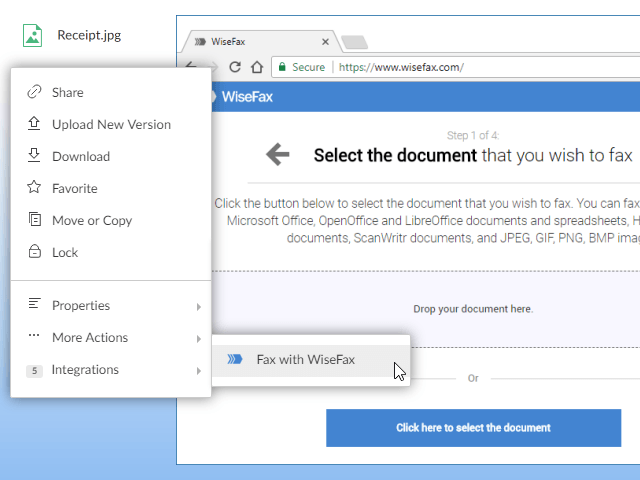
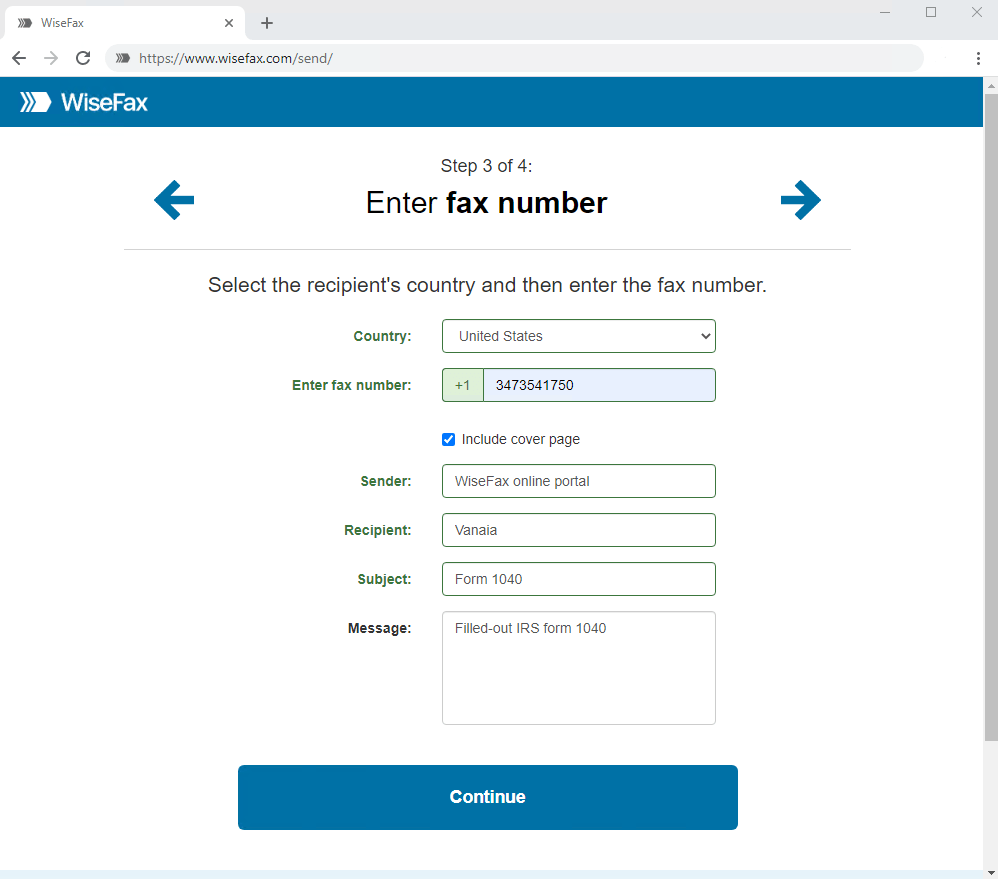
Just click Continue to confirm the selected document. Then enter the recipient’s fax number in the next step and click Continue.
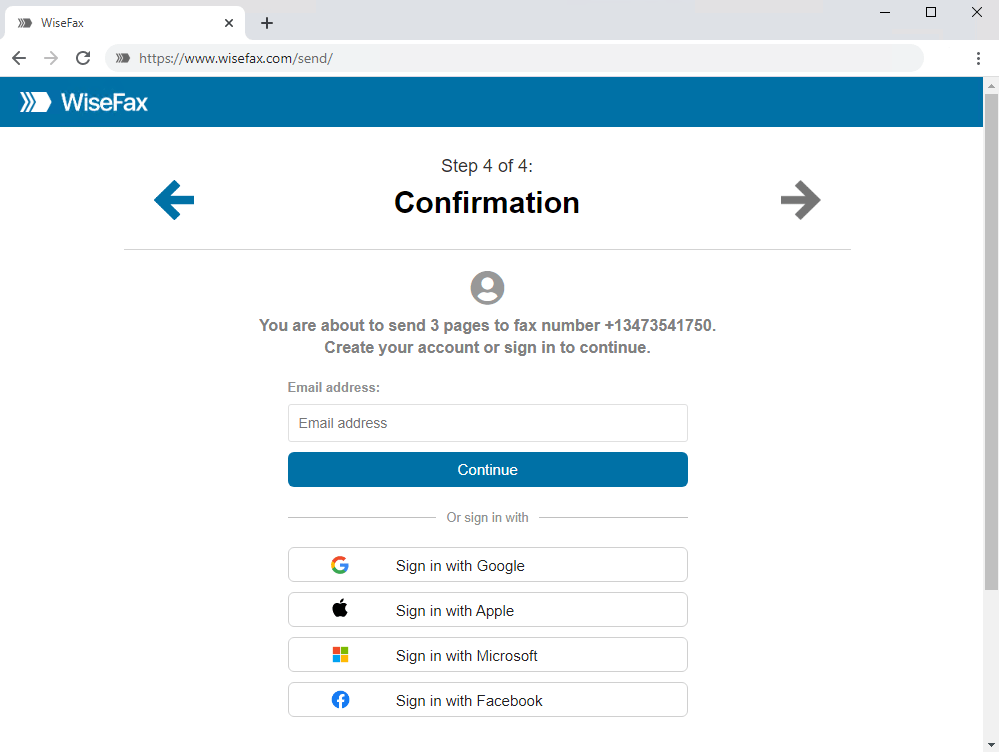
Select an account that you wish to use to fax your Box document. You can sign in with your email address or with your Google, Apple, Microsoft, or Facebook account.
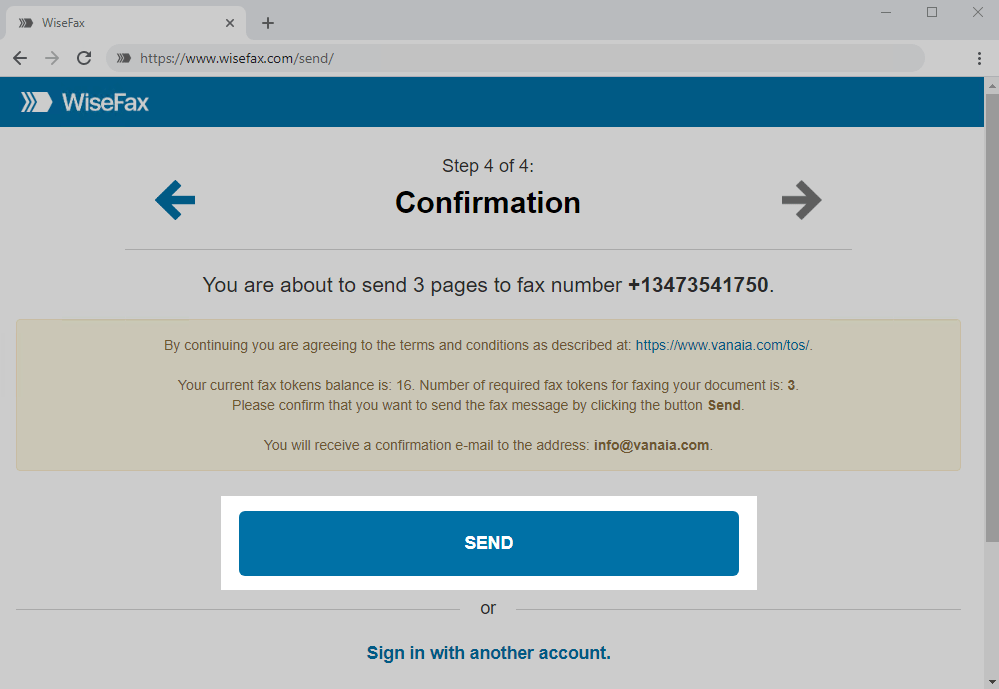
If you don’t have enough fax tokens to send your fax yet, click the Buy required number of fax tokens button. It’s a blue button at the bottom of the page. Doing so opens a pop-up window where you can enter your credit or debit card details, or click the Other methods link in the upper-right corner of the window if you wish to use PayPal or Amazon as your payment method.
The last step is to click the Send button. You will receive an email notification as soon as WiseFax starts processing your fax. This usually happens a couple of minutes after you click Send.
You will receive an email confirmation as soon as your fax is delivered to the recipient.
If for some reason WiseFax is unable to fax your Box document (for example, if the recipient’s line is temporarily unreachable or busy), you will also receive an email notification from WiseFax. You can then fax your document again later without buying additional fax tokens.
More resources
WiseFax app for Box
WiseFax add-on for Google Docs
How to fax a PDF document?
How to send a fax online?