


Sending fax from Firefox browser by using WiseFax Add-on is a very easy procedure. We will tell you how to send fax from your browser with WiseFax.
1. Add the WiseFax add-on to your Mozilla Firefox browser
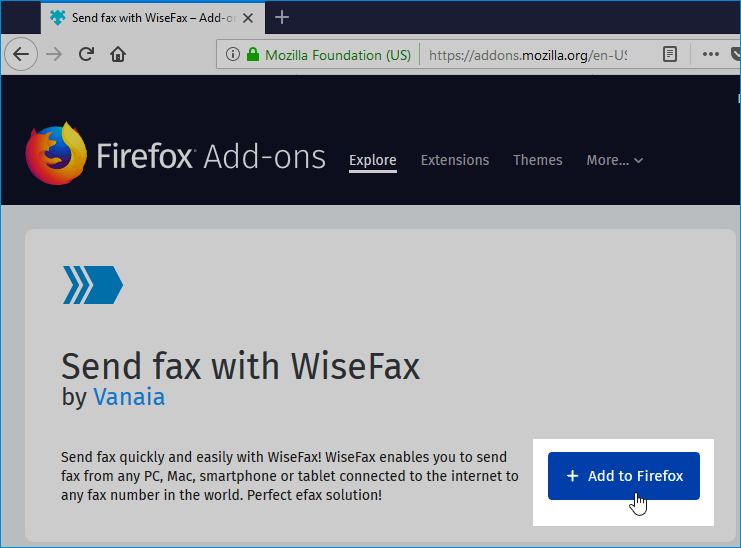
You must use Mozilla Firefox browser, where you install WiseFax Add-on following this link. Click Add to Firefox button and then confirm this by clicking Add in new window. WiseFax Add-on is added to Mozilla Firefox.
2. Fax from Firefox with WiseFax
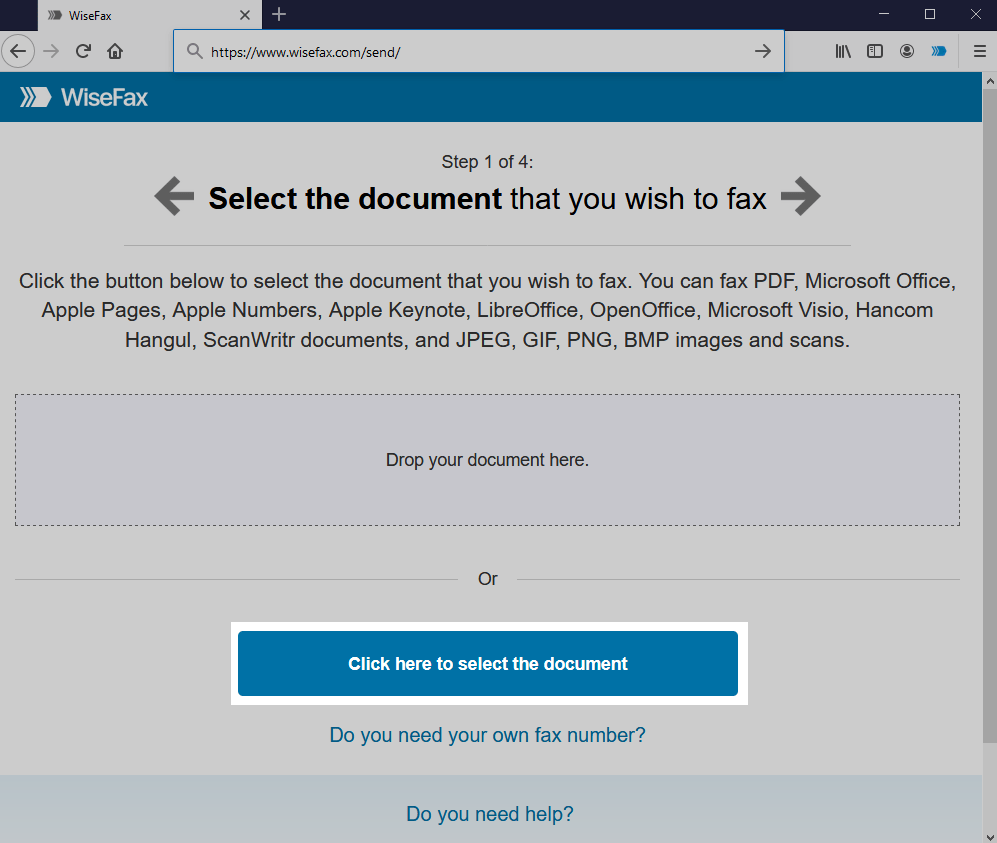
To send fax from Firefox, click the WiseFax icon – it’s a blue right-facing arrow icon in the upper-right side of the Firefox window. WiseFax will open in a new tab.

Click the Click here to select the document button. A new window will open where you can select the document you want to fax.
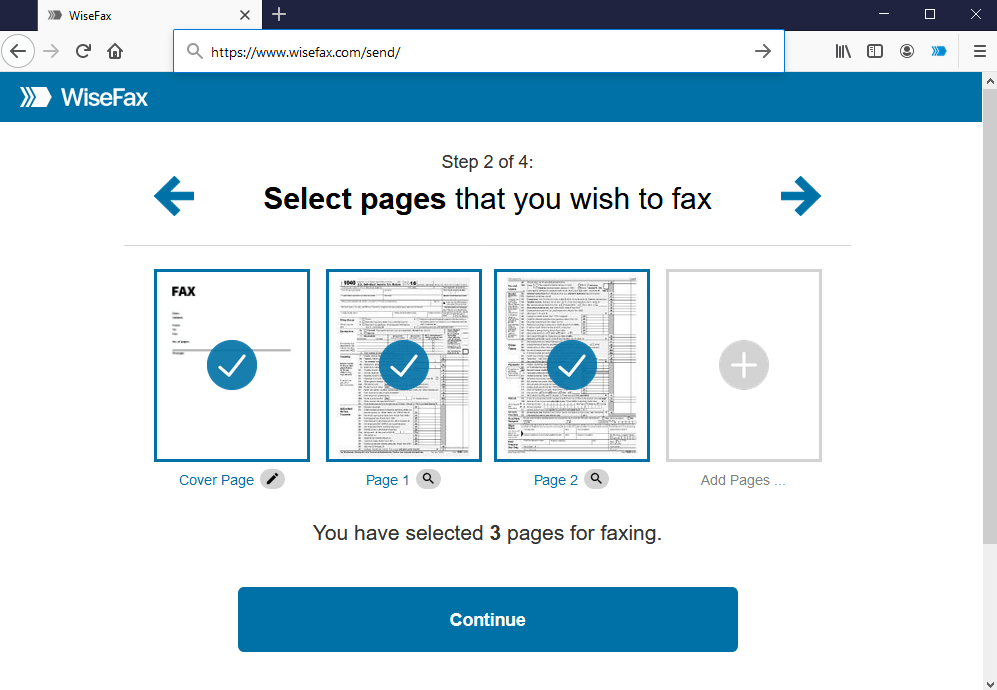
Select the pages that you wish to fax. To add pages from another document, click Add Pages and select that document. Once you have selected all the pages you want to fax, click Continue.
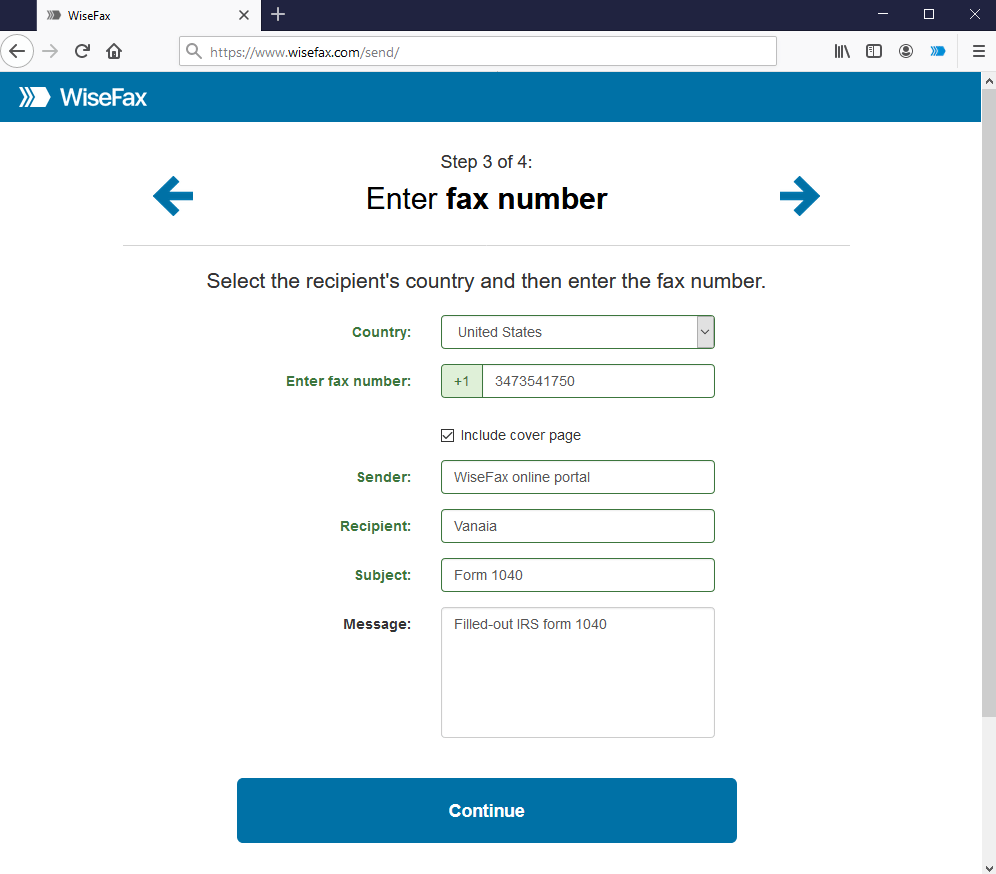
Enter the recipient’s fax number and click Continue.
3. Signing in and confirming fax
Select an account that you wish to use to fax your document from Firefox. You can sign in with your email address or with your Google, Apple, Microsoft, or Facebook account.
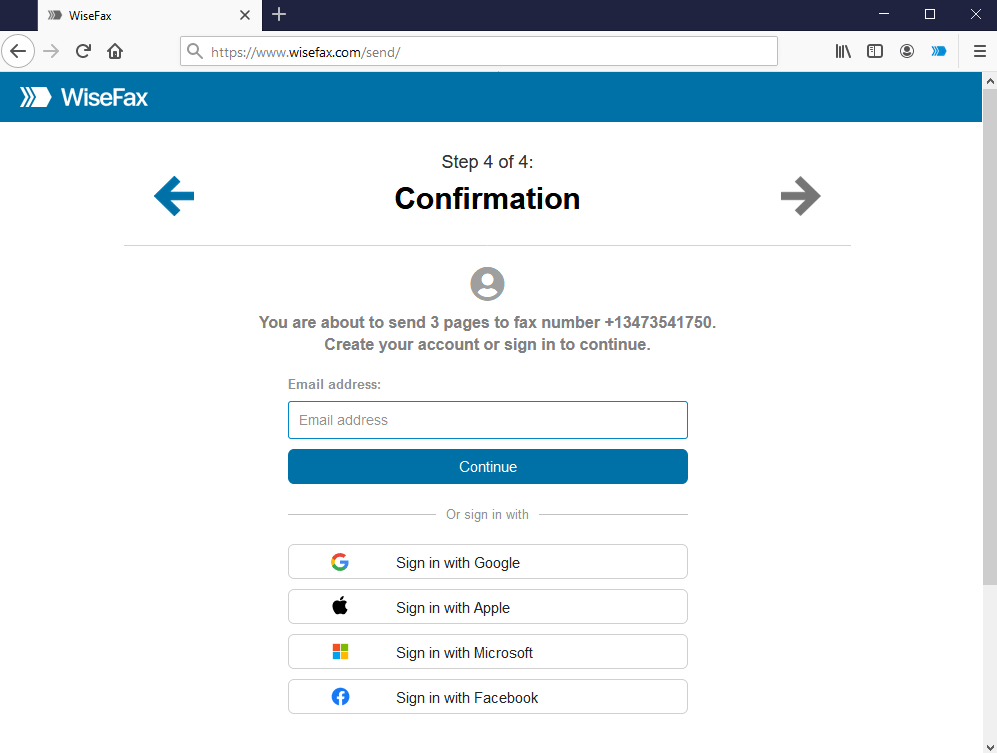
If you don’t have enough fax tokens to send your fax yet, click the Buy required number of fax tokens button. It’s a blue button at the bottom of the page. Doing so opens a pop-up window where you can enter your credit or debit card details, or click the Other methods link in the upper-right corner of the window if you wish to use PayPal or Amazon as your payment method.
The last step is to click the Send button. You will receive an email notification as soon as WiseFax starts processing your fax. This usually happens a couple of minutes after you click Send.
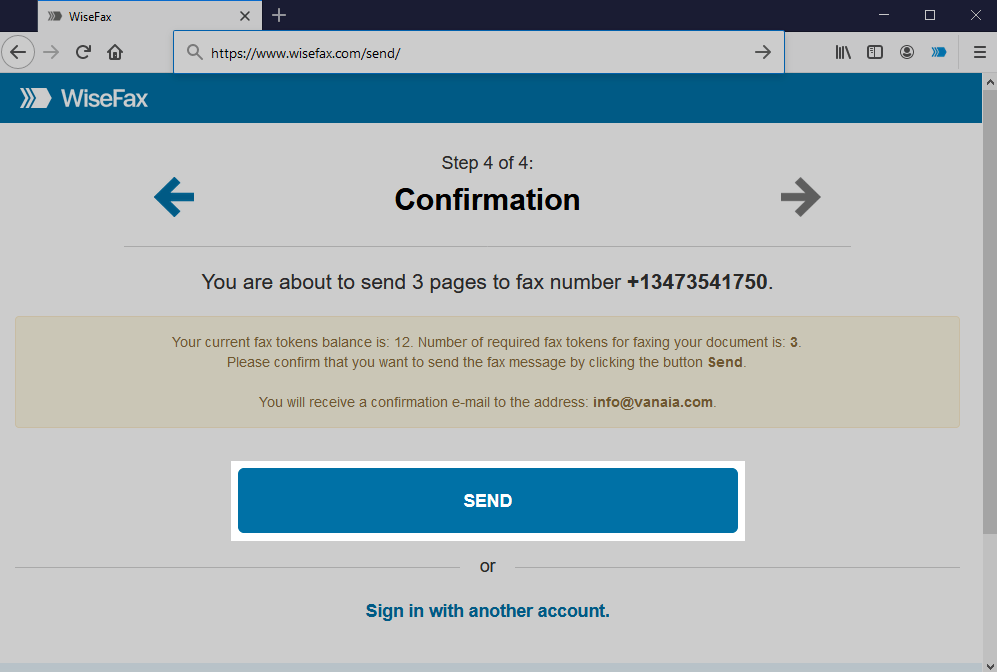
You will receive an email confirmation as soon as your fax is delivered to the recipient.
If for some reason WiseFax is unable to fax your document (for example, if the recipient’s line is temporarily unreachable or busy), you will also receive an email notification from WiseFax. You can then fax your document again later without buying additional fax tokens. Now you know how to fax from Firefox!
More resources
WiseFax add-on for Google Docs
How to fax a PDF document?
How to send a fax online?