


Here, we will explain how to fax something online quickly and easily. With WiseFax online service, you can send faxes online in just a few seconds.
- Upload your document to WiseFax
- Select the recipient’s country and enter the recipient’s fax number
- Sign in and make a one-time purchase of fax tokens, if required
- Click the “Send” button to start sending the document
How to fax something online?
If you are wondering how to send a fax online, look no further. WiseFax is a simple-to-use website that allows you to send a fax online quickly, easily and securely. Simply start by uploading your document to WiseFax. You can choose between PDF, Microsoft Office, Apple Pages, Apple Numbers, Apple Keynote, LibreOffice, OpenOffice, Hancom Hangul, ScanWritr documents, and JPEG, GIF, PNG, HEIC, TIFF, BMP bitmaps and scans.
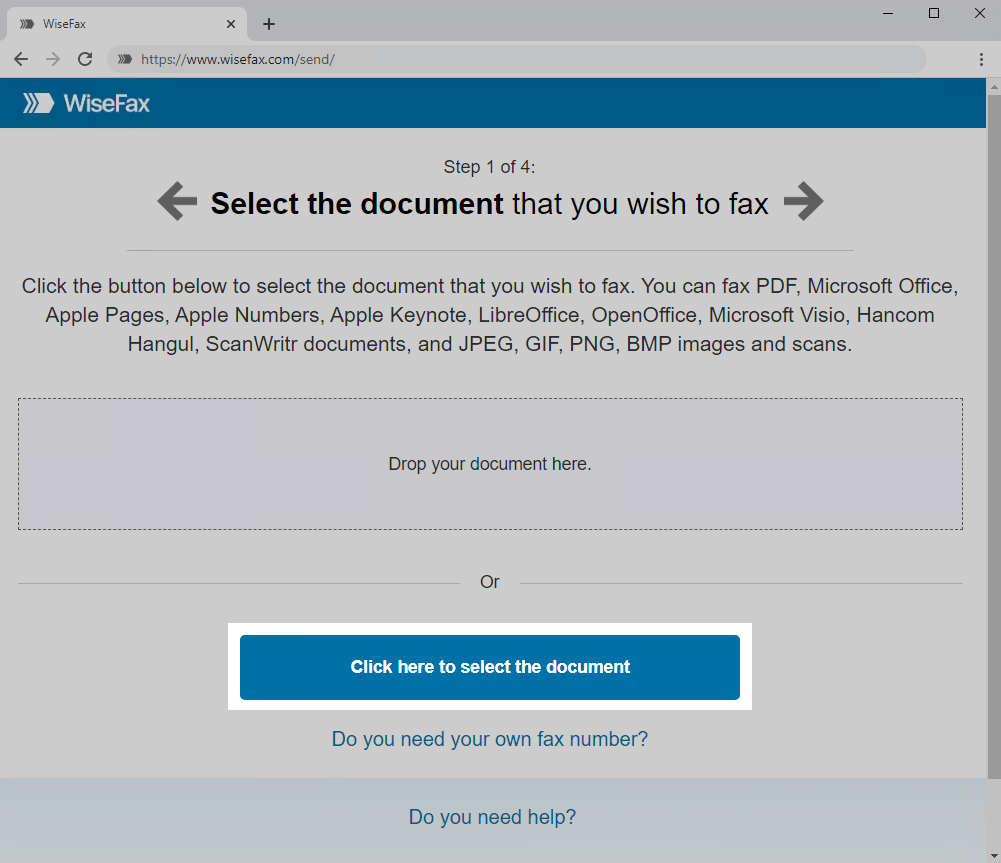
To upload your document, use the Click here to select the document button. A new window will pop up where you can select your document.
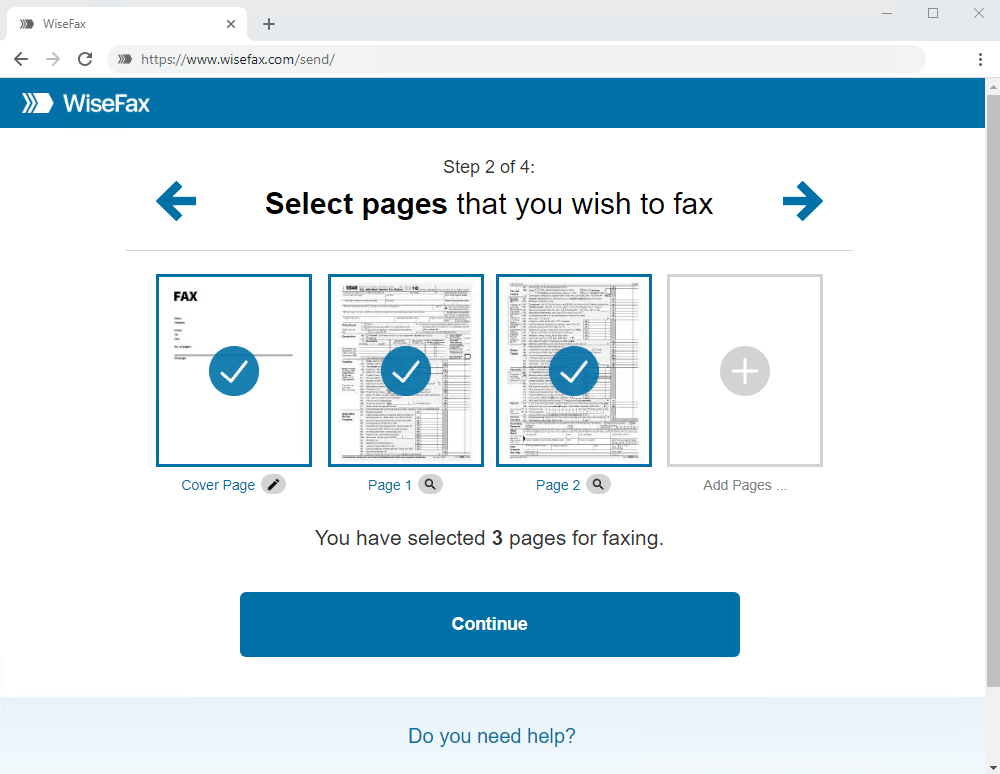
In the next step, select the pages that you wish to send to the recipient. To add pages from another document, click Add Pages and select that document.
Press the Continue button once you have selected all document pages.
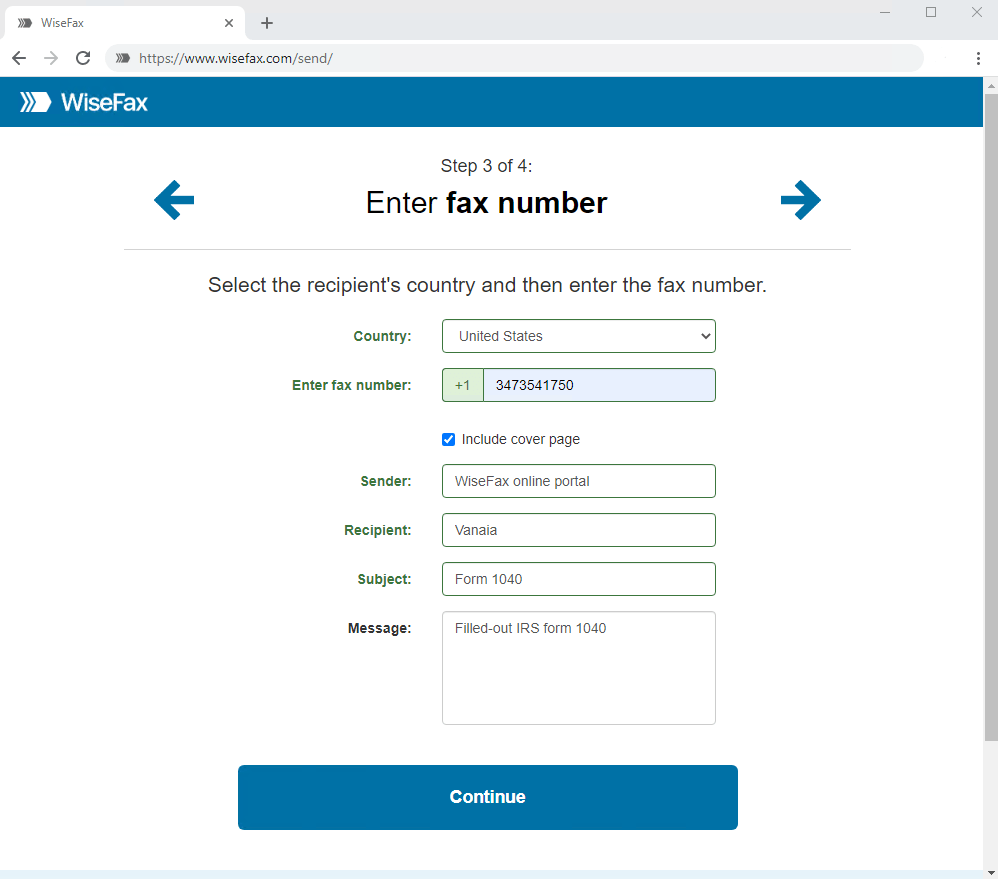
Enter the recipient’s fax number and click Continue.
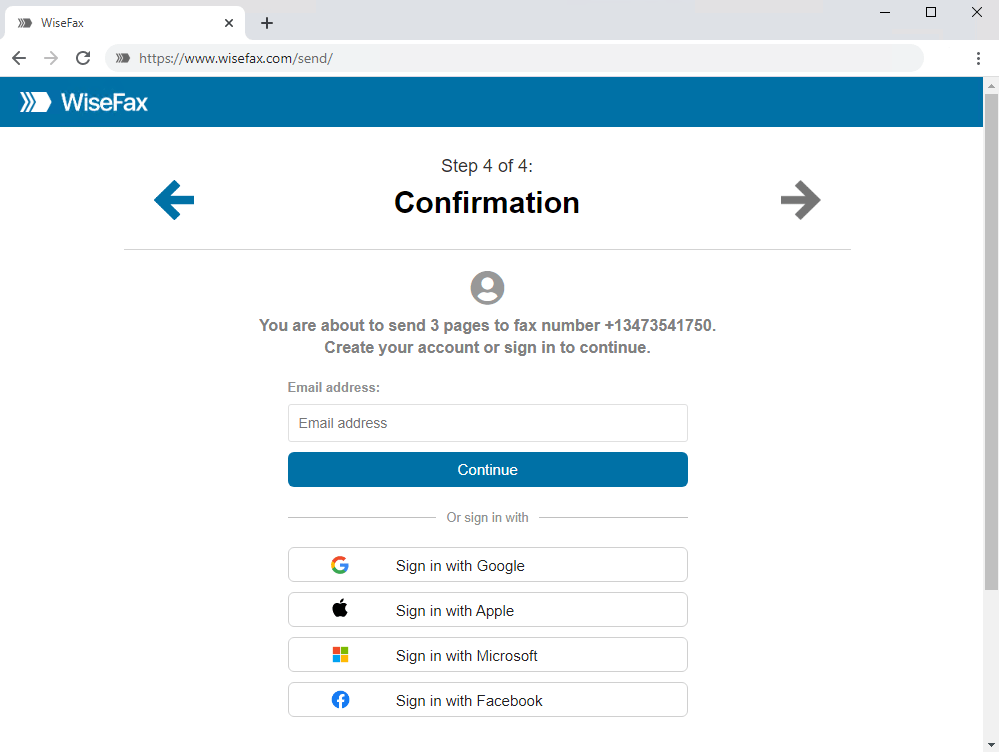
Signing in and confirming
Select an account that you wish to use. You can sign in with your email address or with your Google, Apple, Microsoft, or Facebook account.
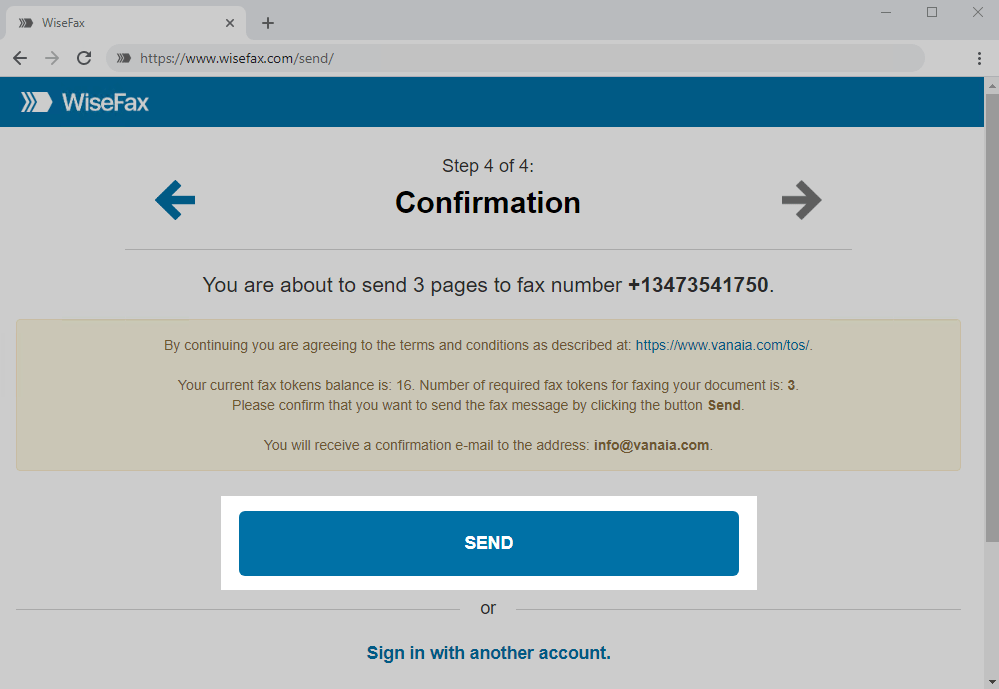
If you don’t have enough fax tokens, choose one of the purchase options and make a one-time payment. The last step to send a fax online is to click the Send button. You will receive an email notification as soon as WiseFax starts processing your fax. This usually happens a couple of minutes after you click Send.
You will receive an email confirmation as soon as your fax is delivered to the recipient.
If for some reason WiseFax is unable to deliver your document, you will also receive an email notification from WiseFax. You will then be able to send your documents once again later without purchasing additional tokens.
More resources
Best fax app for Mac
WiseFax app for Box
WiseFax add-on for Google Docs