


Sending a fax seems impossible if you do not have a fax machine. Luckily, you can send fax from ProtonMail using an email to fax service. WiseFax email to fax service is a perfect solution because it allows you to fax documents quickly, easily and securely using an email. Also, you don’t need a subscription to send fax from email using WiseFax email to fax service.
- Compose a new message in ProtonMail
- Insert recipient’s fax number as the email recipient (in the form of fax_number@wisefax.com, for example: 13473541750@wisefax.com)
- Attach files that you wish to fax
- Send the email
Send fax from ProtonMail quickly and easily with WiseFax
WiseFax is a simple-to-use efax service that allows you to send a fax directly from ProtonMail to any fax number in the world quickly, easily and securely. After composing a new message, provide the recipient’s fax number. You can do this by inserting the recipient’s fax number into the “To” field. Just insert it in the form of “faxnumber@wisefax.com”. For example, if you wish to send a fax to +1-347-354-1750, then simply put “13473541750@wisefax.com” into the “To” field. Make sure that you include the country code as well. You can send documents to one or more fax numbers at once. Define multiple recipients by separating recipients’ addresses with semicolons (for example: “13473541750@wisefax.com;38614213741@wisefax.com”).
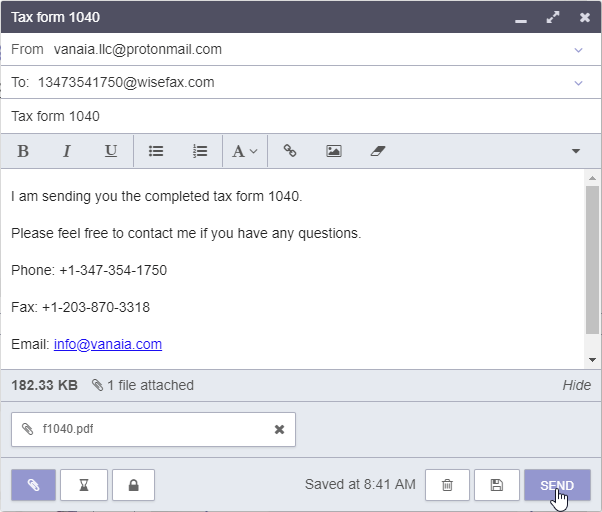
Attach one or more files that you want to fax. WiseFax supports a large set of document formats, so you do not need to convert your documents before faxing. Simply attach PDF, Microsoft Office, Apple iWork, LibreOffice, OpenOffice, Hancom Hangul, ScanWritr documents, or JPEG, GIF, PNG, HEIC, TIFF, BMP bitmaps and scans to your email.
Including a cover page with your fax is easy, too. Your email’s subject line automatically becomes the cover page’s subject, and the email’s content becomes the cover page’s message. If you do not want to attach the cover page, just leave the email’s subject line empty. Sending fax from ProtonMail is so easy!
Signing in and confirming fax
You will get a confirmation email from WiseFax a few seconds after sending your first email. To confirm sending your email to fax, simply follow the links in the email. All subsequent emails will be faxed automatically.
If you do not have enough fax tokens to send your fax yet, WiseFax will automatically redirect you to a page where you can buy the required number of fax tokens. Once you have done that, we will start sending your fax.
You will receive an email confirmation as soon as your fax is delivered to the recipient.
If for some reason WiseFax is unable to send fax from ProtonMail (for example, if the recipient’s line is temporarily unreachable or busy), you will also receive an email notification from WiseFax. You can then fax your document again later without buying additional fax tokens.
More resources
Best fax app for Mac
How to fax a PDF document?
Computer fax service
Best fax app for Android
How to send a fax from Google Docs?
Purchase more tokens for a better price
Now you know how to send fax from ProtonMail!