


If you don’t know how to fax from a PC Windows 10 computer, there is an easy answer. Use the best fax app for Windows called WiseFax. Just download and install the WiseFax app. You can also install it from the Microsoft Store. And you are ready to send fax from your Windows 10 computer to any fax number in the world. WiseFax is a free application, and you don’t need a subscription to use it. With the WiseFax fax app for Windows, you only pay for the fax sending service as you go, so there are no hidden fees. Quick, simple and transparent.
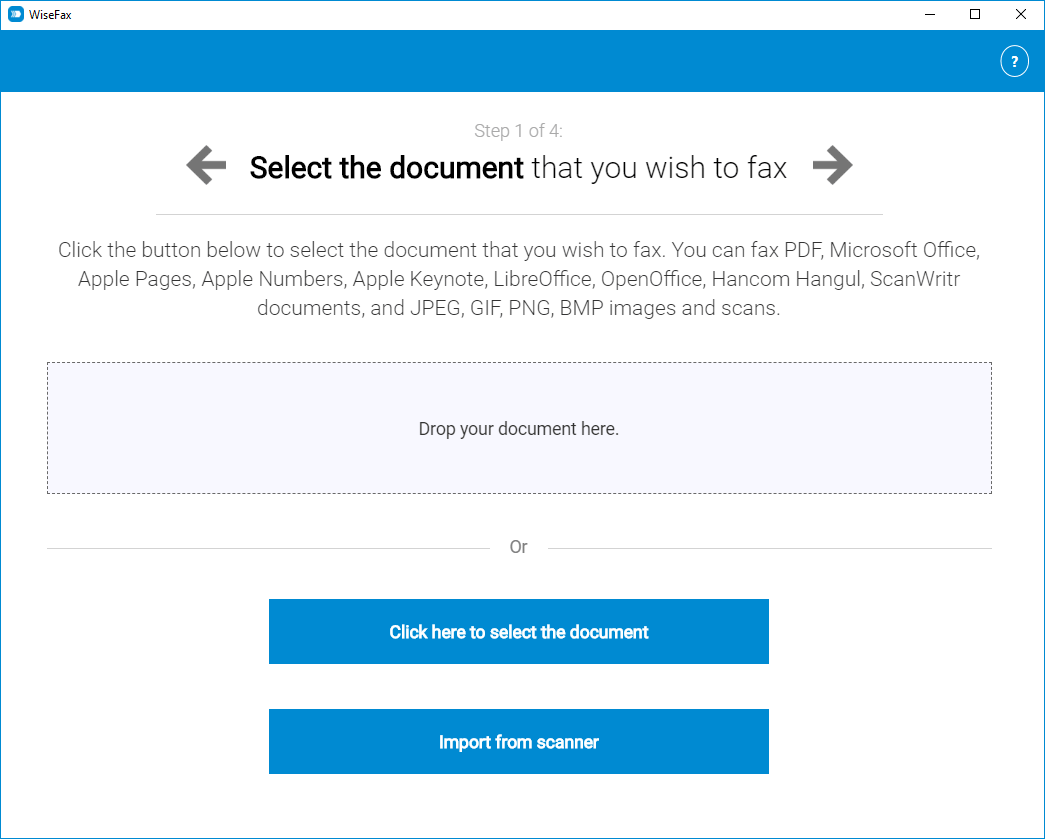
How to fax from a PC Windows 10 computer?
To send fax from Windows 10, just install the WiseFax app on your Windows computer, upload or scan the document you want to fax or take a picture of your document, preview it, mark the pages to be sent, enter the fax number, and that’s it. WiseFax will do the rest for you. WiseFax recognizes all the most common file types, such as MS Word documents, MS Excel spreadsheets, Adobe Acrobat PDF, OpenOffice and LibreOffice documents, ScanWritr documents and many others. So, you don’t have to convert documents manually. It also supports sending JPEG, GIF, PNG, HEIC, TIFF and BMP picture formats. WiseFax will automatically convert your document to fax and optimize it before sending.
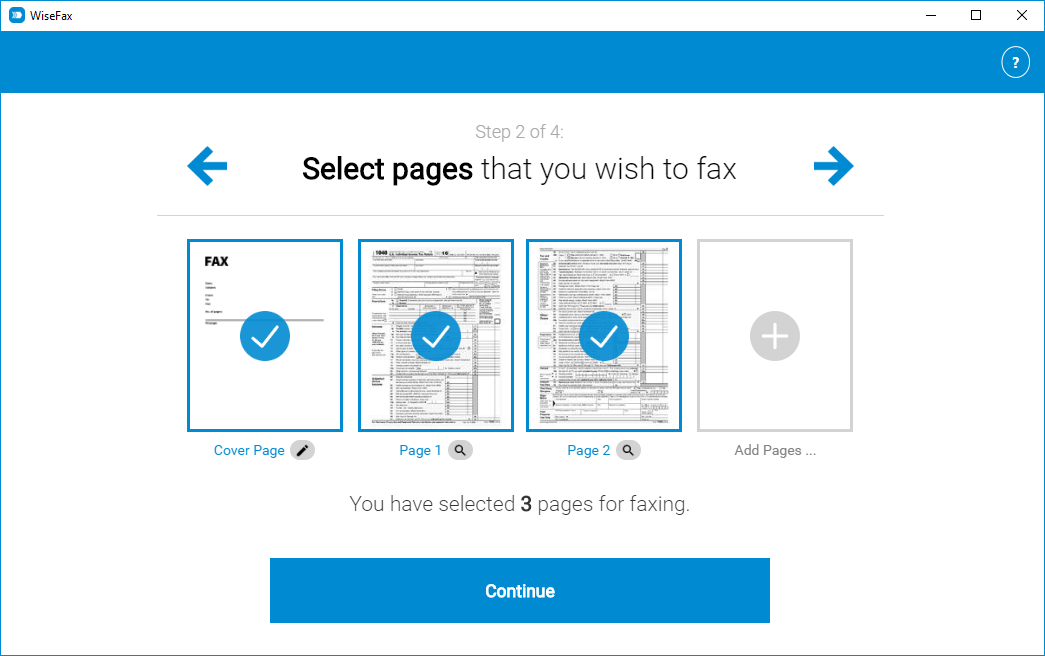
To send an internet fax you only need the WiseFax app
WiseFax is the best fax app if you need to send fax from a Windows 10 computer. It is free and you will be charged only for successfully sent faxes. There are no regular monthly costs and no hidden fees. WiseFax will calculate the price and present it to you before sending. So you always know the total cost before you approve it. The price is based only on the number of pages and the recipient’s location. After successful delivery, you will receive a fax confirmation by email.
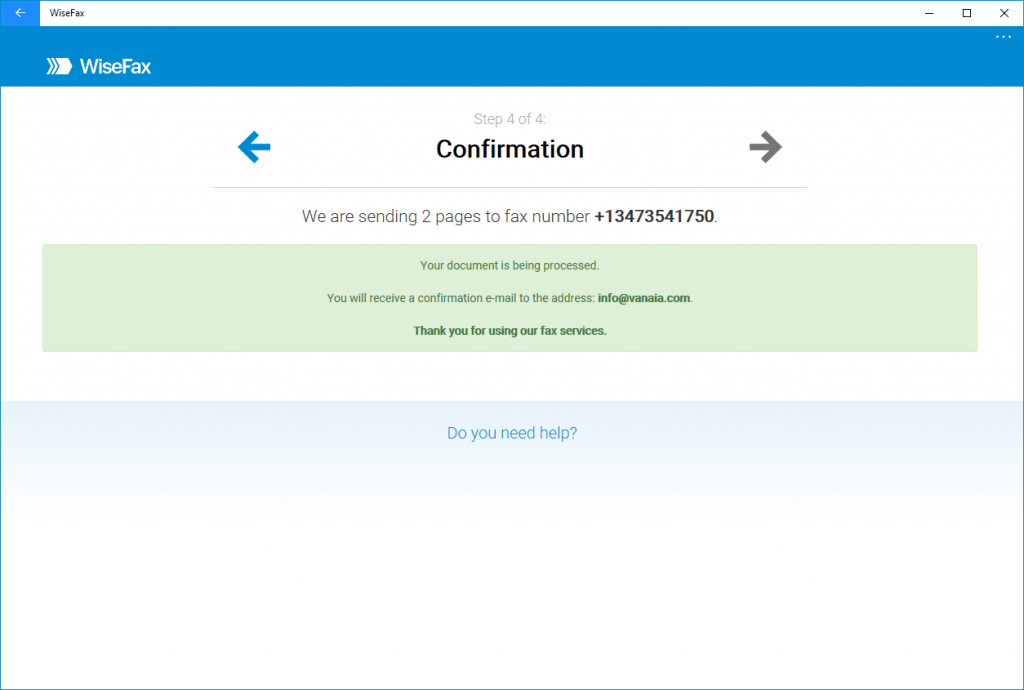
Install the WiseFax app and start sending faxes all over the world
WiseFax is available here and on the Microsoft Store, so you just have to install it on your Windows 10 computer. In conclusion, you will be able to send every document from any Windows computer to any fax machine in the world. Try it now!
More resources
WiseFax app for Box
How to fax a Word document?
WiseFax add-on for Google Docs
How to fax a PDF document?
How to send a fax online?
How to fax from a PC Windows 11?
Now you know how to fax from a PC Windows 10 computer!